
CryFox documentation
How to install CryFox, what it changes from Firefox, and where to find each setting.
Install
Installers for Windows, macOS and Linux will be published with the first release, CryFox 0.0.1. Until then, you can build CryFox from source with the Firefox build system.
git clone https://github.com/arcbaseproject/CryfoxBrowser
cd CryfoxBrowser
./mach bootstrap
./mach build
./mach run
The build options are in mozconfig. For more about
the build system, see the Firefox Source Docs.
First launch
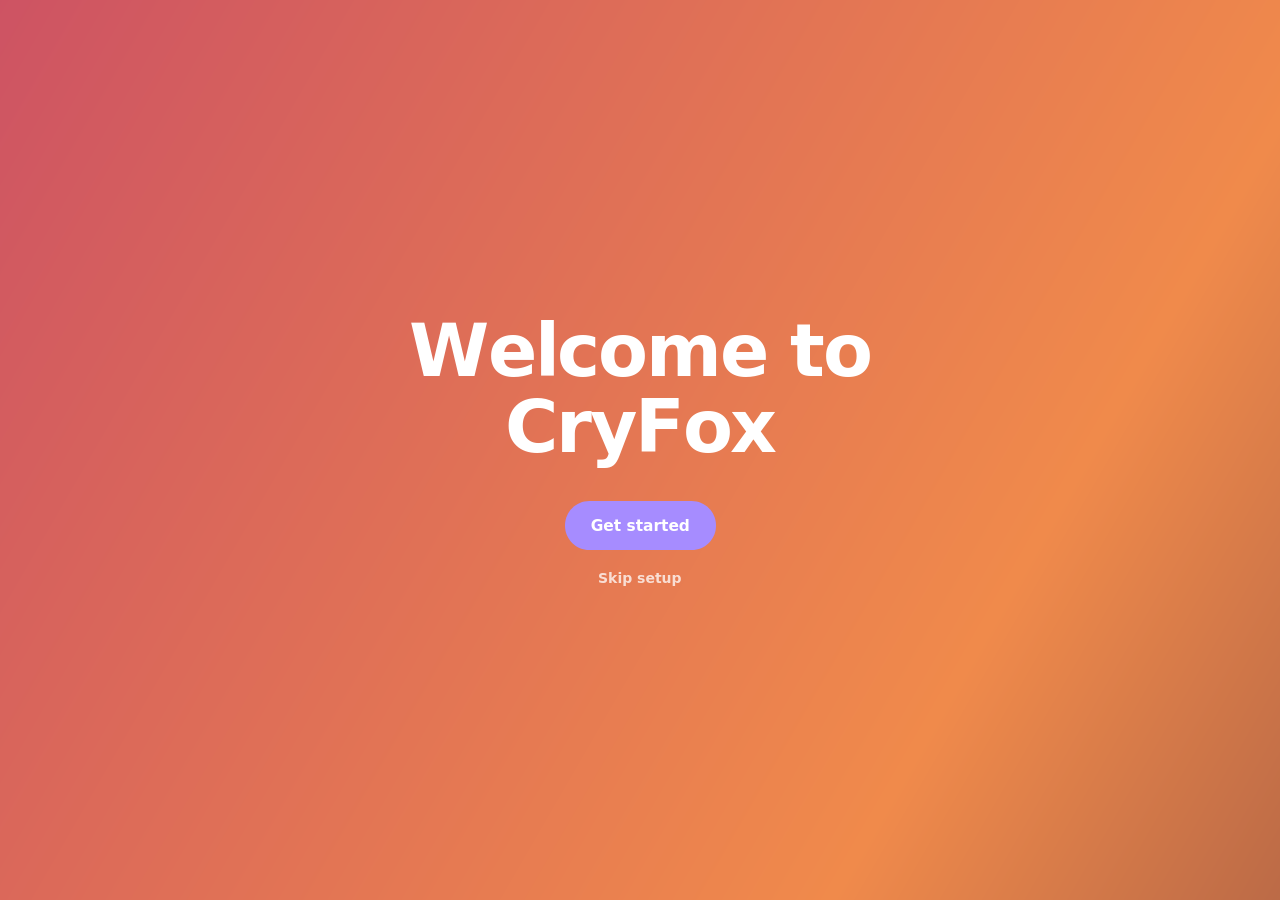
The first time you open CryFox, a short welcome page walks you through setup. You can skip it, and every step can be changed later in Settings.
- 1
Import from another browser
Bring over bookmarks, passwords and history.
- 2
Pick a theme
Light, dark, or match your system.
- 3
Choose a search engine
Brave Search is selected by default.
- 4
Make CryFox your default
Optional. Links from other apps will open in CryFox.
Privacy defaults
CryFox turns on strict privacy settings out of the box. Telemetry and AI features are locked off; everything else can be changed.
Tracking protection
Enhanced Tracking Protection is set to Strict. It blocks trackers, cryptominers, fingerprinters and email trackers.
Settings → Privacy & Security
Cookies
Total Cookie Protection keeps each site's cookies in a separate jar, so they can't follow you across sites.
Settings → Privacy & Security
HTTPS-Only mode
Connections are upgraded to HTTPS. CryFox asks before loading a site that doesn't support it.
Settings → Privacy & Security
DNS over HTTPS
DNS lookups are encrypted. If the secure resolver can't be reached, CryFox falls back to your system DNS. You can pick another provider or turn on Max Protection.
Settings → Privacy & Security
Global Privacy Control
Tells websites not to sell or share your data. Prefetching and speculative connections are off.
Settings → Privacy & Security
No telemetry or AI
Telemetry, studies, crash reporting, AI chatbots, link previews, smart tab groups and translations are disabled and locked.
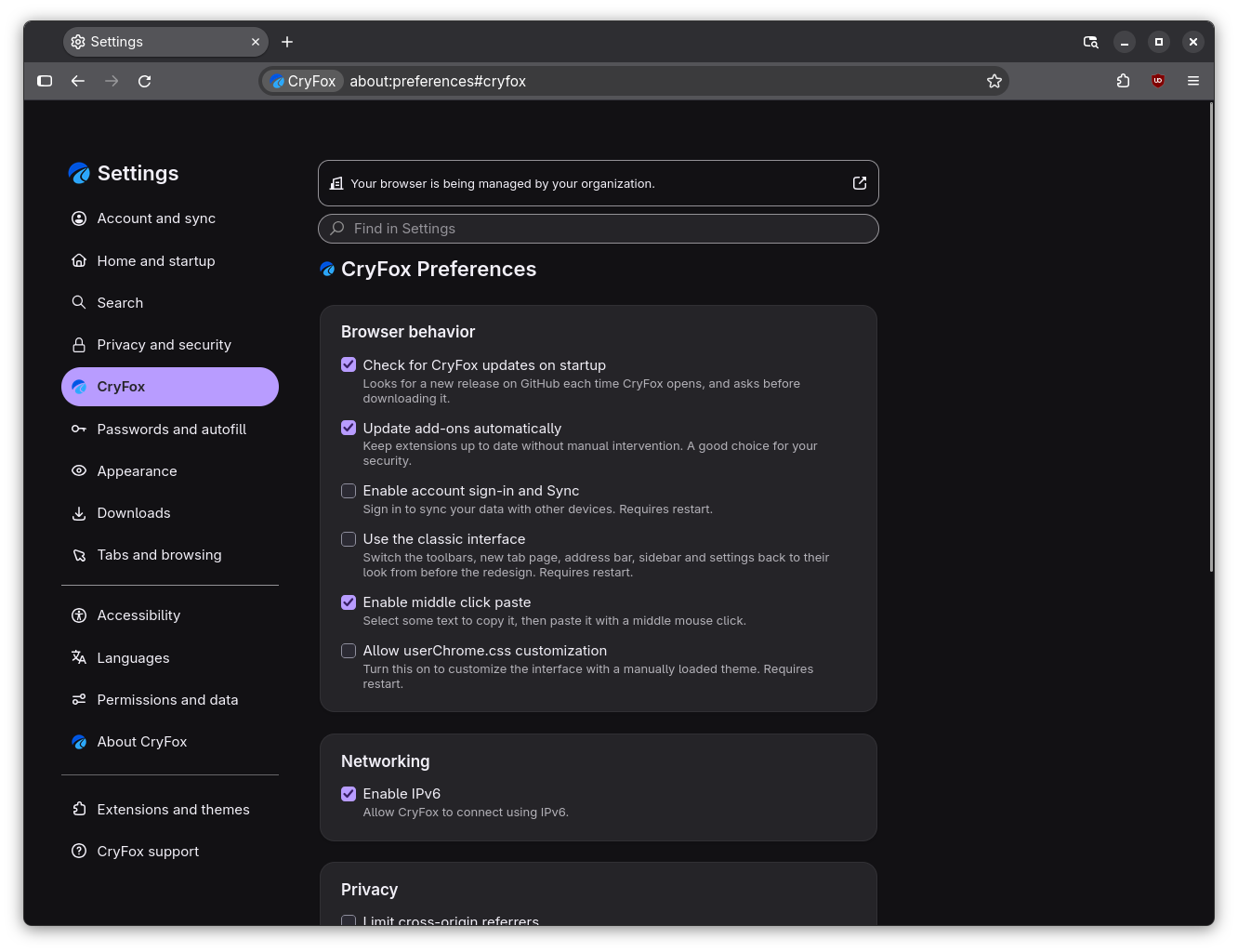
CryFox settings
CryFox adds its own pane to Settings, with options that
are otherwise only in about:config. Open it from
Settings → CryFox.
- Update add-ons automatically.
- Enable account sign-in and Sync.
- Middle click paste and userChrome.css.
- IPv6 and cross-origin referrer limits.
- ResistFingerprinting, letterboxing, and disabling WebGL.
The pane also links to about:config and your profile folder, and has a button to restart CryFox.
Search and new tab
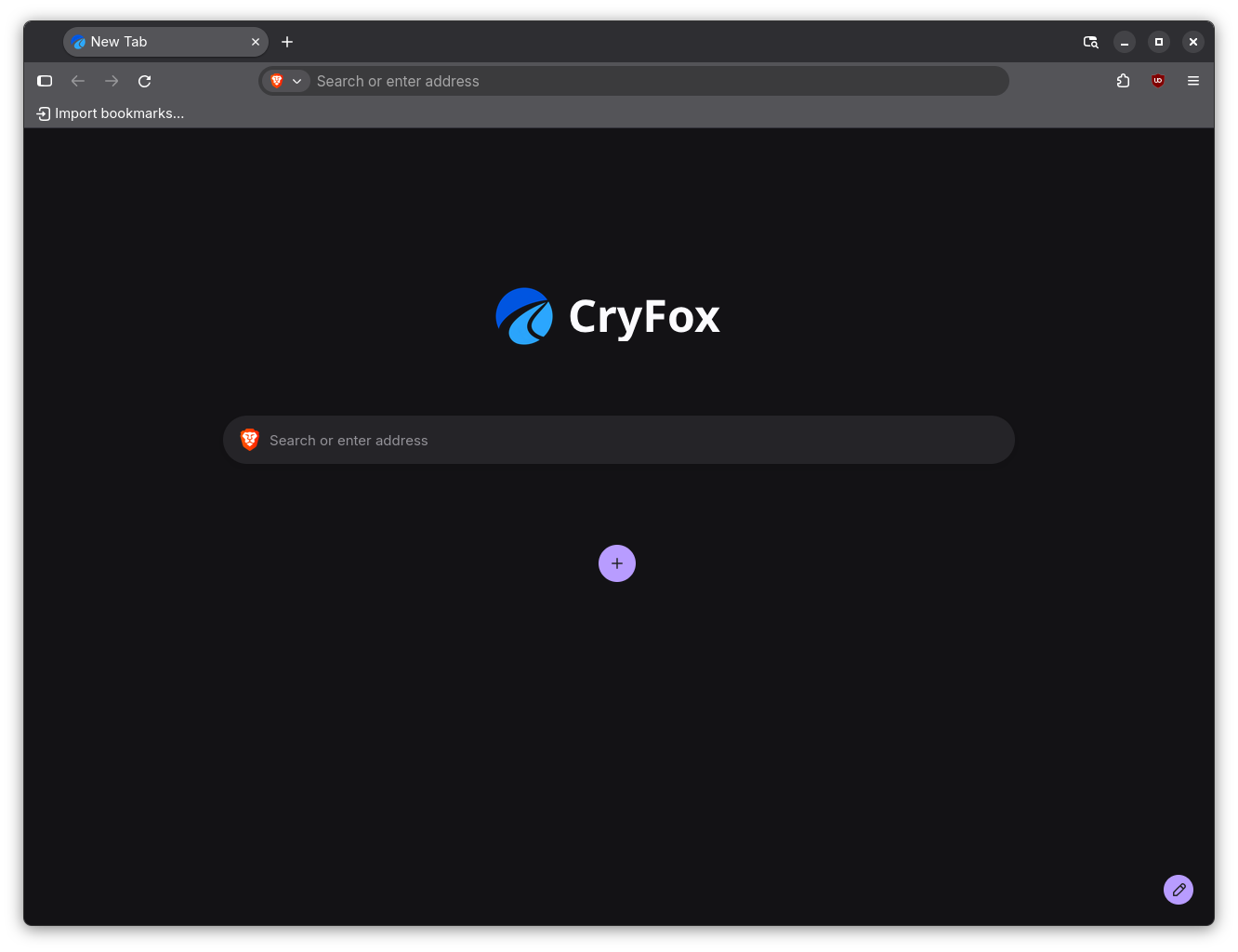
Brave Search is the default search engine. Search
suggestions and trending searches are off, so nothing
you type in the address bar is sent until you press
Enter. Change the engine in
Settings → Search, which also shows privacy
notes for each engine.
- No stories, sponsored tiles or default shortcuts.
- Only sites you visit appear as shortcuts.
- uBlock Origin is installed on first launch.
- Any Firefox extension works as it does in Firefox.
Troubleshooting
Strict defaults occasionally get in the way. Here is how to loosen them where you need to.
A website doesn't work
Click the shield icon in the address bar and turn off Enhanced Tracking Protection for that site. If you turned on ResistFingerprinting or disabled WebGL, try turning those back off in Settings → CryFox.
A setting can't be changed
Some preferences are locked by CryFox's policies, such
as telemetry and AI features. See every active policy
at about:policies.
Passwords aren't saved
The built-in password manager, address and card autofill, and form history are disabled. Use a password manager extension instead.
Signing in to Sync
Account sign-in is off by default. Turn on "Enable account sign-in and Sync" in Settings → CryFox and restart.
Updates and policies
Updates
CryFox follows Firefox's stable releases and is currently based on Firefox 157.0.1. The built-in updater is removed, so CryFox never checks for updates on its own. Install a new version by downloading the latest build.
Enterprise policies
CryFox's defaults are set with Firefox enterprise
policies, and it supports the same policies as Firefox.
Review them at about:policies.
Need help?
Found a bug or have a question? Open an issue on GitHub.